Applications
The Applications label on the left rail opens a dashboard where you can browse applications and pin the ones you use often. The › beside the label opens a short list over your current screen. For example, while reading a conversation in Bridge, you can check which apps are available and dismiss the list to keep reading.
Browse the dashboard
Click or tap the Applications label, or focus it and press Enter. Search the dashboard by application name or filter by the kind of work you want to do using Area. The groups come from the Composition portfolio.
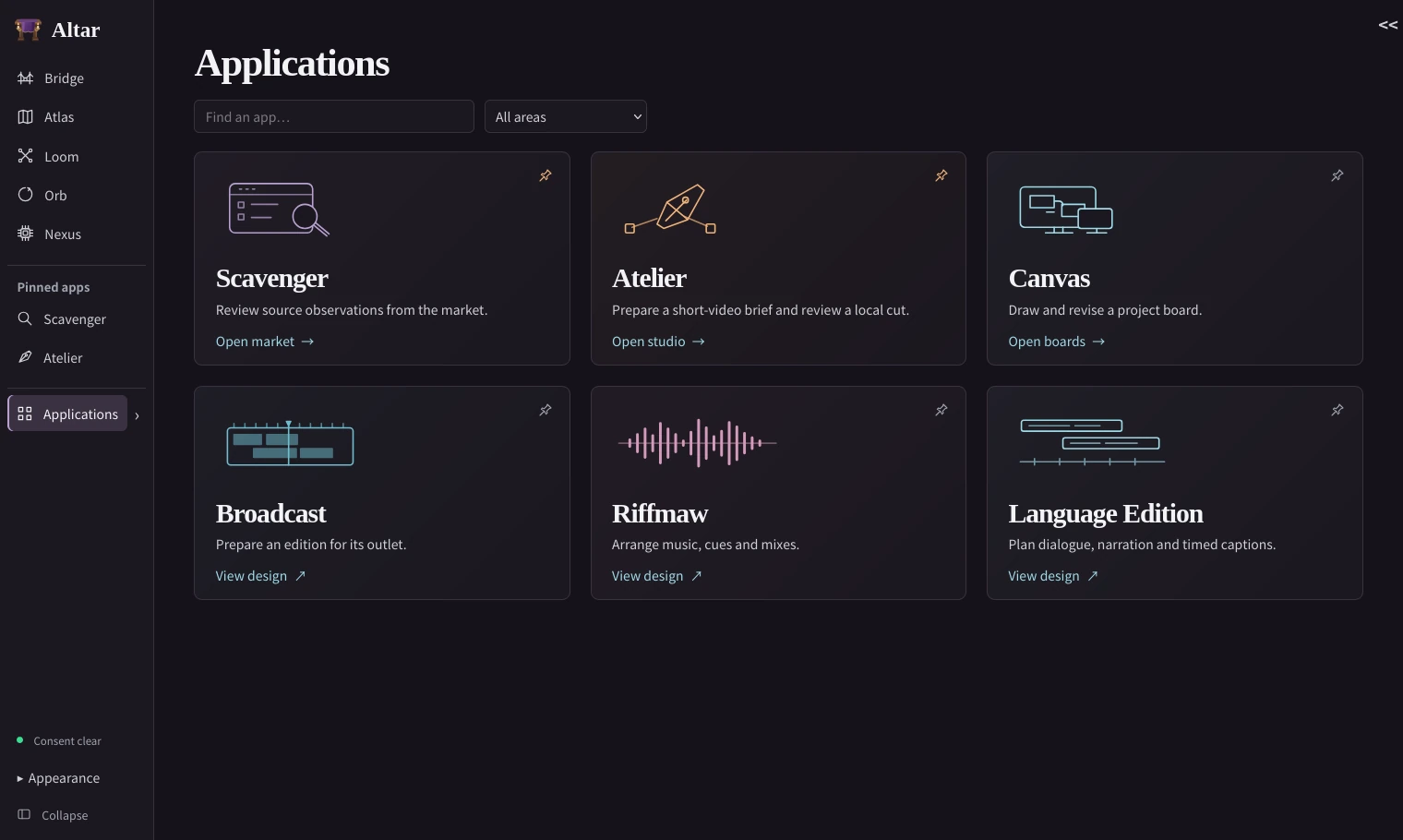
The initial design study below provided the three-column layout and the visual motifs for the installed cards above. Labels on the installed cards follow their available destinations.
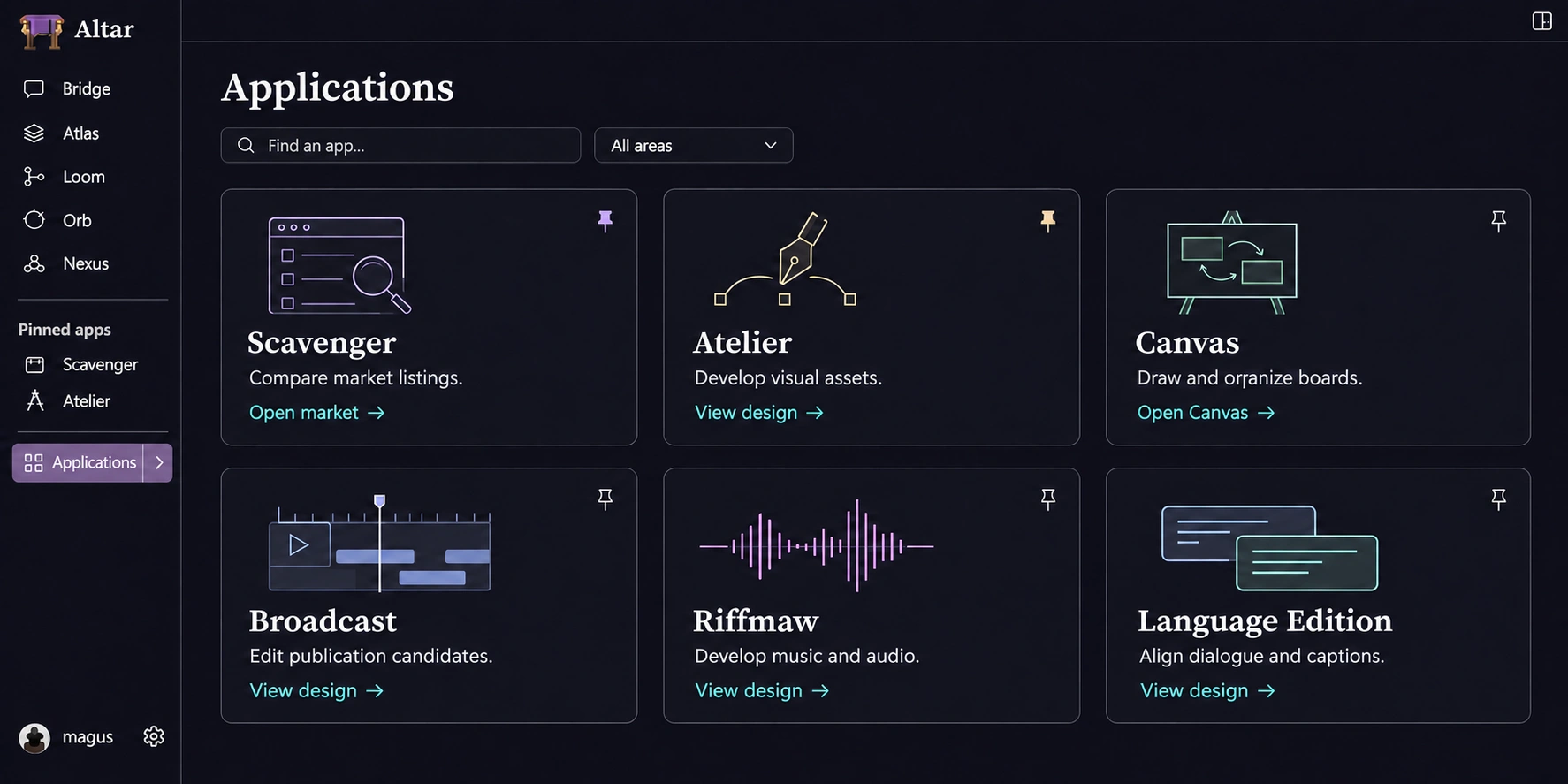
Each card names its destination. Open market takes you to Scavenger’s market. Open boards takes you to board authoring. View design opens the guide for Broadcast, Riffmaw or Language Edition. Open studio opens the Atelier short-video studio. Pin a card to put a shortcut to that same destination on the rail. In the example, Scavenger and Atelier are pinned. Starting a Run requires a separate action.
Open the quick list
Right-click the Applications row, or click or tap its separate › button. With a keyboard, focus › and press Enter or Space. The popup opens beside the rail on the current screen. Hovering over the closed row or moving focus onto it keeps the popup closed.
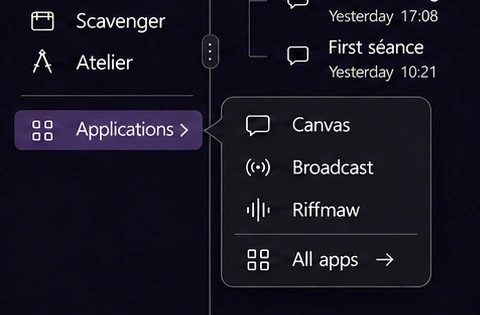
The popup stays open as you move the pointer into it or tab to an entry. In the example, Canvas, Broadcast and Riffmaw are available here as unpinned shortcuts. Choose an entry to open its destination, or choose All apps for the full dashboard. To stay where you are, click outside the popup or press Escape. Escape returns focus to the control that opened it.
Cut a video in Atelier
In this proposed workspace, Observatory at dusk is a 12-second illustrated story at 30 fps.
Its storyboard has passed review. The left Altar sidebar holds the pinned Atelier shortcut
and the shot bin, with Dome selected. The centre monitor shows Cut rev 3 at
00:00:05:12, five seconds and twelve frames into the cut. Below the playback controls,
the playhead crosses the Picture, Captions, Voice, Music and Effects tracks.
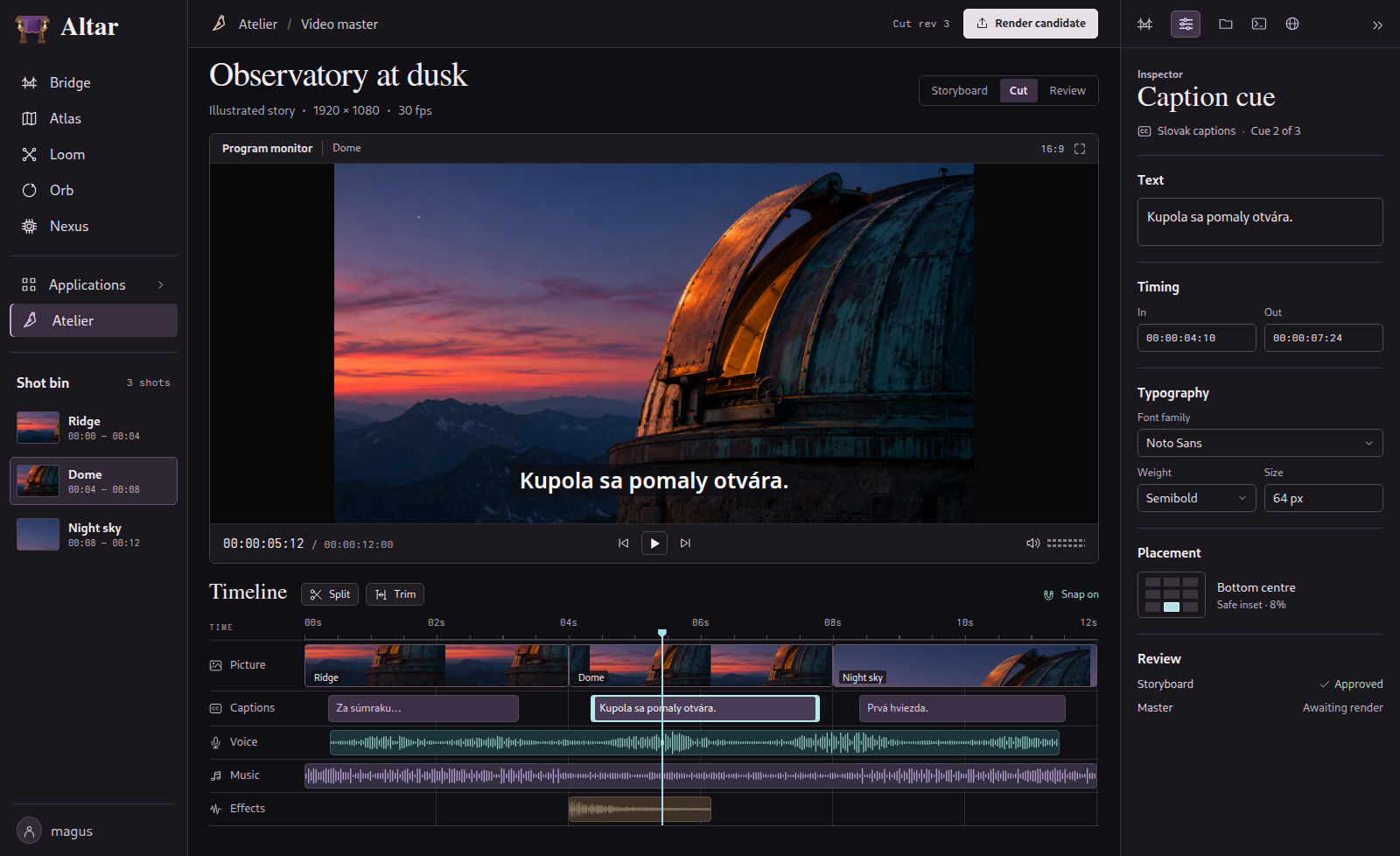
To time the caption to the opening dome, select “Kupola sa pomaly otvára.” on Captions.
In the right inspector, set its in point to 00:00:04:10 and its out point to 00:00:07:24.
The example uses Noto Sans Semibold at 64 px, centred 8% above the bottom edge of the
1080p frame. Play across both ends of the cue to check when the words appear and clear.
To cut to Night sky as the caption clears, select the shared picture edit at 00:00:08:00
and choose Trim. Roll the edit six frames earlier to 00:00:07:24. The inspector shows
both source trim points so you can check that Night sky has six earlier frames available.
The cut still runs twelve seconds. The voice and music keep their positions. Audition the
transition, then select the voice clip to adjust gain or lower the music under the line.
The cut design proposes a candidate export for review against its exact bytes. In the current Atelier studio you can exchange a short-video brief, select shots, split cues, adjust caption timing, audition local audio and export a WebVTT track. The master-render action above is part of the design study.
Availability
Submitting a Scavenger market observation requires the finite feed observation profile. The portfolio delivery record tracks the work each Composition can perform.