Moving between screens
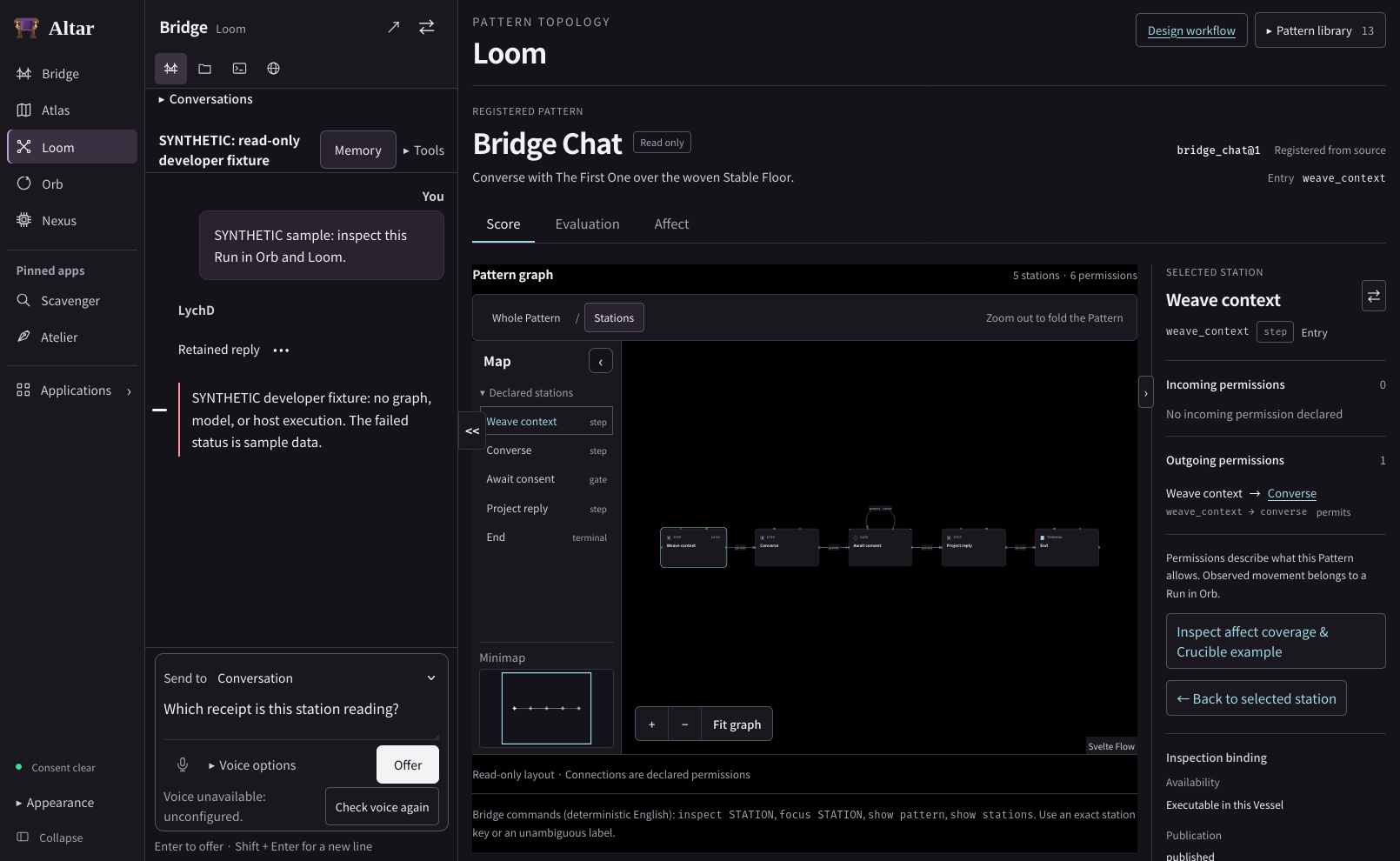
Suppose a shell is open beside a conversation and you want to inspect the workflow that produced a reply. In the proposed Altar, you can open its score in Loom, read a station, then bring the same shell or conversation alongside it. This page describes the screen design. The installed conversation dock and workbench delivery record describe what you can use today.
Local files
Open Files in the side panel and choose one or more UTF-8 text files of up to 1 MiB each.
The file tree opens beside the draft. Select a filename, drag its divider or use Hide file tree.
Save revision adds an entry to the file's Change ledger. Entries distinguish a read,
a changed revision, a refused oversized edit and a requested export. Download a revision to
keep its text. Returning to Files within the open Altar preserves the draft. Each downloaded filename includes its revision and ends in .txt. Saving a draft enables its download.
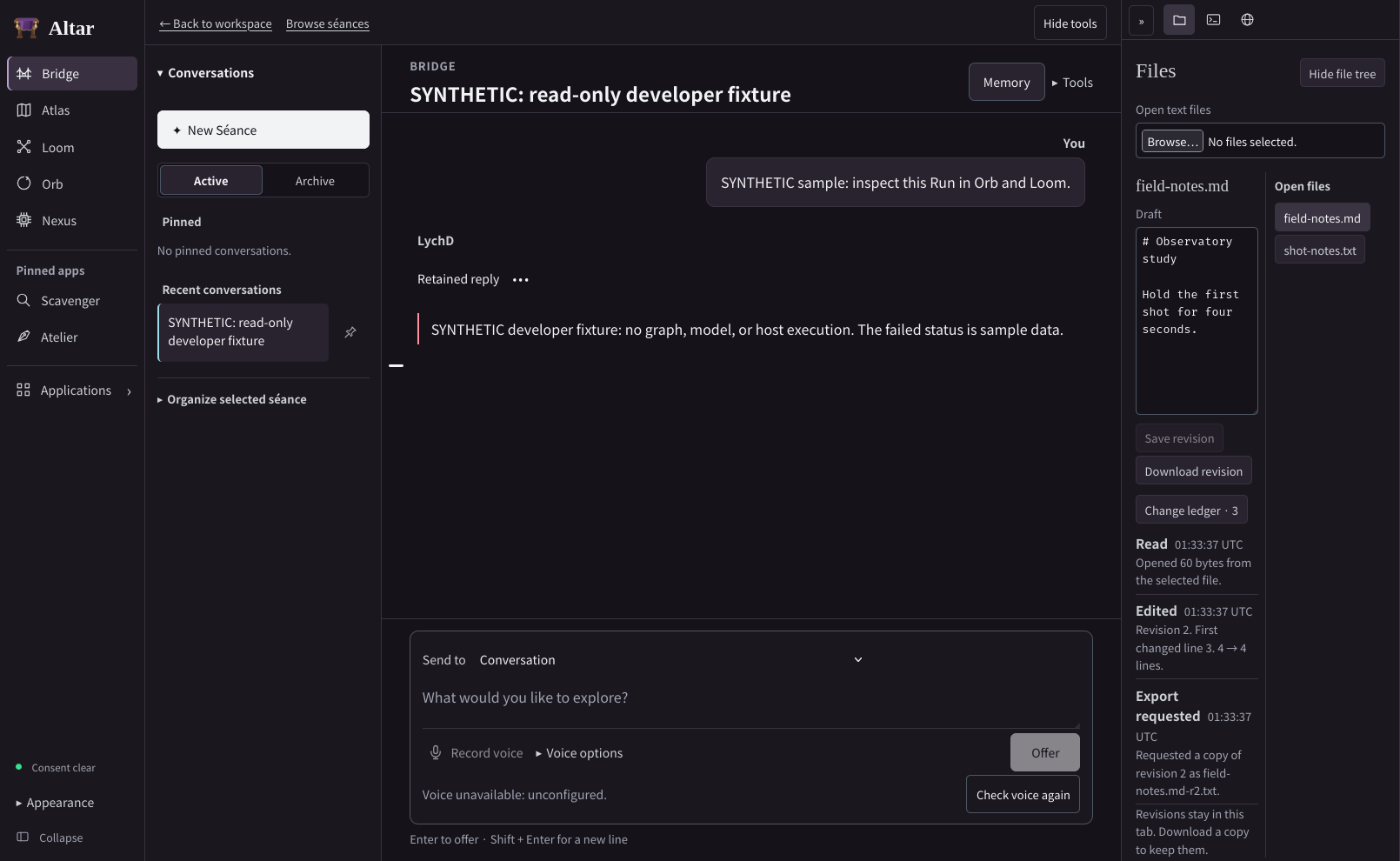
Web opens the entered HTTP or HTTPS address in the system browser and keeps a short list in this document. Terminal displays the current connection state. This build has no host shell transport.
To discuss a station while reading it, open Walking Bridge and use ⇄ to move the conversation across the work area. Selecting the station in Loom opens its definition alongside the conversation. The dock divider accepts dragging and arrow keys. Collapse it to recover canvas space.
Choose what sits beside the work
The main navigation chooses the screen. In Loom, the graph sits between the Map on the left and the tools panel on the right. Tool icons run in a single row inside the top of the panel. Each has an accessible name and a tooltip. Fold the panel with the double chevron at its outer edge. A single chevron reopens it on its last tool.
| Screen | Icons from left to right |
|---|---|
| Bridge | Files, Terminal, Web. The conversation already occupies the main pane. |
| Loom | Walking Bridge, Inspector, Files, Terminal, Web. Selecting a node on the canvas or its name in the Map opens Inspector. |
| Orb | Walking Bridge, selected event, Files, Terminal, Web. Choosing a recorded event opens its details at the current capture time. |
| Nexus | Walking Bridge, selection details, Files, Terminal, Web. Selecting a row opens that capability, transition or person. View access carries a local Principal from Users into IAM. |
| Other screens | Bridge first, then tools specific to the screen, followed by Files, Terminal and Web. |
Files opens the selected document and its file tree. Drag the divider to size the tree or fold it against the outer edge. The chevron collapses it in one action. Select Files again to bring it back. Multiple documents, shells and web pages each stay grouped under their own icon. Use its item list to return to an open file, the second shell or a particular page. Switching screens keeps those items available within the same authorized context. A host would need to expose the corresponding file, shell or browser capability before the client could perform an operation.
In both design studies, selecting a Map entry locates it on the canvas. The minimap shows where the current view sits in the graph. In Loom you navigate the workflow revision. In Orb the observed Map follows the timeline cursor. Hide either Map when you need more canvas space.
The rail can also take you to the Applications dashboard. Its separate chevron opens a short list over the current screen.
Make room
Drag the dividers to adjust the width of the Altar rail, Map or tools panel. In Loom, swap the two panels to keep your preferred tool on either side of the graph. In Bridge, you can also resize the list of séances. A focused divider supports arrow keys. A pane can fold down to its reopen control. Expand either side of the main split to use the work area, then restore its previous widths. A folded pane retains its selected item and any conversation draft. On a narrow screen a single foreground pane has a named return control.
Keep the conversation on Loom
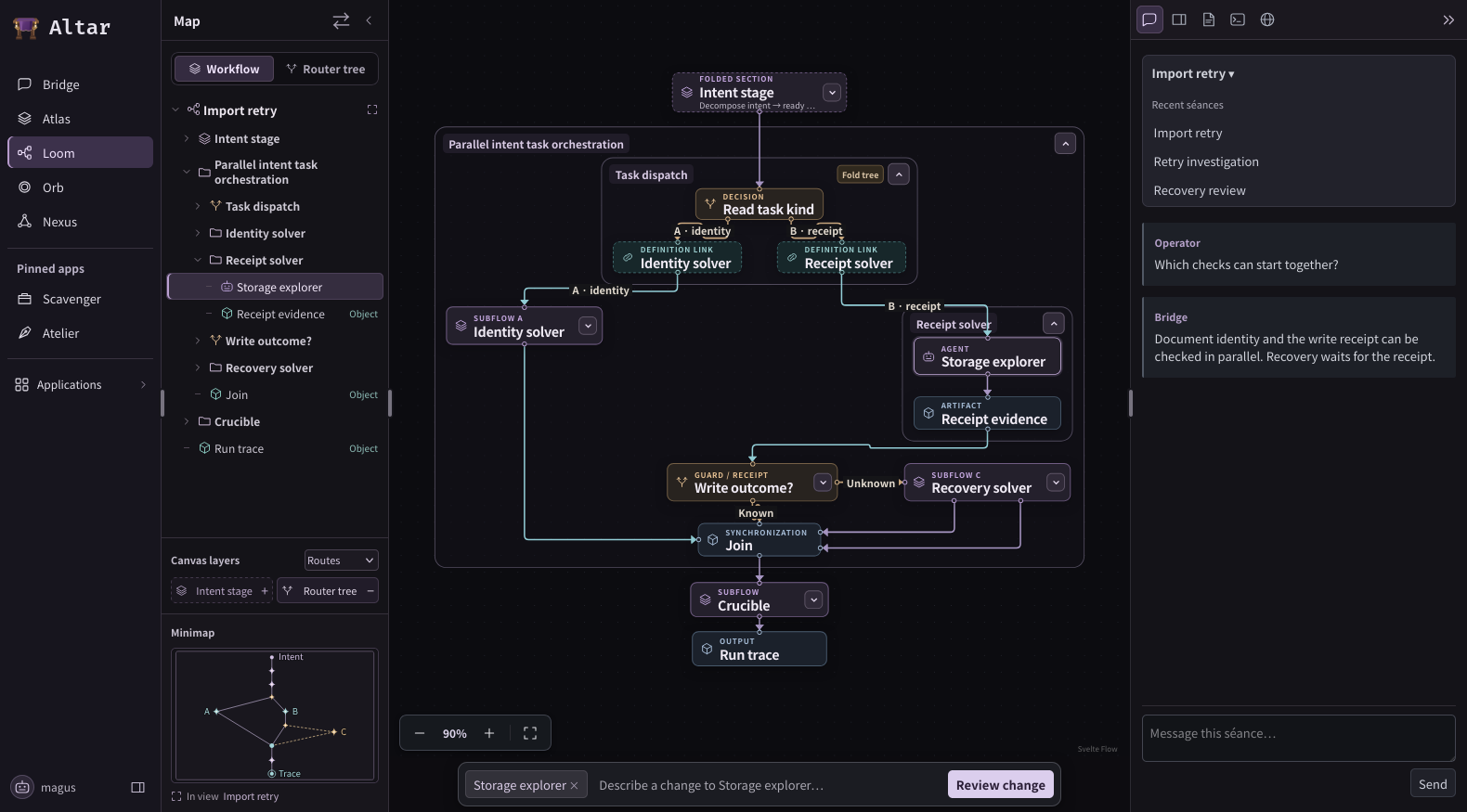
Open Walking Bridge. Its first control is the current séance name. Use it to choose a recent conversation or Browse séances to open the catalogue. Start a draft, then select Repository explorer on the canvas or by name in the Map. The graph zooms to the agent. Inspector opens with Repository explorer as its heading and the agent's inputs and outputs under Ports. Its system and user templates live under Prompts. Select the attached object or its enclosing subgraph to inspect that subject. Select Walking Bridge again to pick up your draft in the same séance.
To look around while composing, expand a tree chevron, pan or zoom. Walking Bridge stays in view. Each séance keeps its own draft, and Files remembers its current document. To edit the specimen's workflow, use the Loom composer.
Follow a question to its source
| Question | Where to go |
|---|---|
| What happened to this message? | On the Bridge turn, … → View run in Orb opens the exact Run when its identity is available. Pending consent stays actionable beside the original request. |
| How did the idea develop over this séance? | Open map in Atlas in the séance title menu scopes the Atlas map to the conversation. A relationship cites its source turns. Return to turn reopens the passage and restores the draft. Unavailable citations retain their access or availability state. |
| What other route could this workflow have taken? | Open the exact revision in Loom. Its blueprint includes routes the Run never took. Orb holds the observations for the particular attempt. |
Reading a map, retaining a quotation and attaching material to an Invocation are separate actions. Memory describes the steps that retain a source for later work.
Choose the Altar name and favicon
The default rail label is Altar, beside the purple-clothed table. Open that mark to edit Display name and Icon and favicon. The name and a PNG, JPEG or WebP icon up to 64 KiB are saved in this browser. Restore Altar identity returns to the original name and mark. The source and build version remain accessible in the same panel.